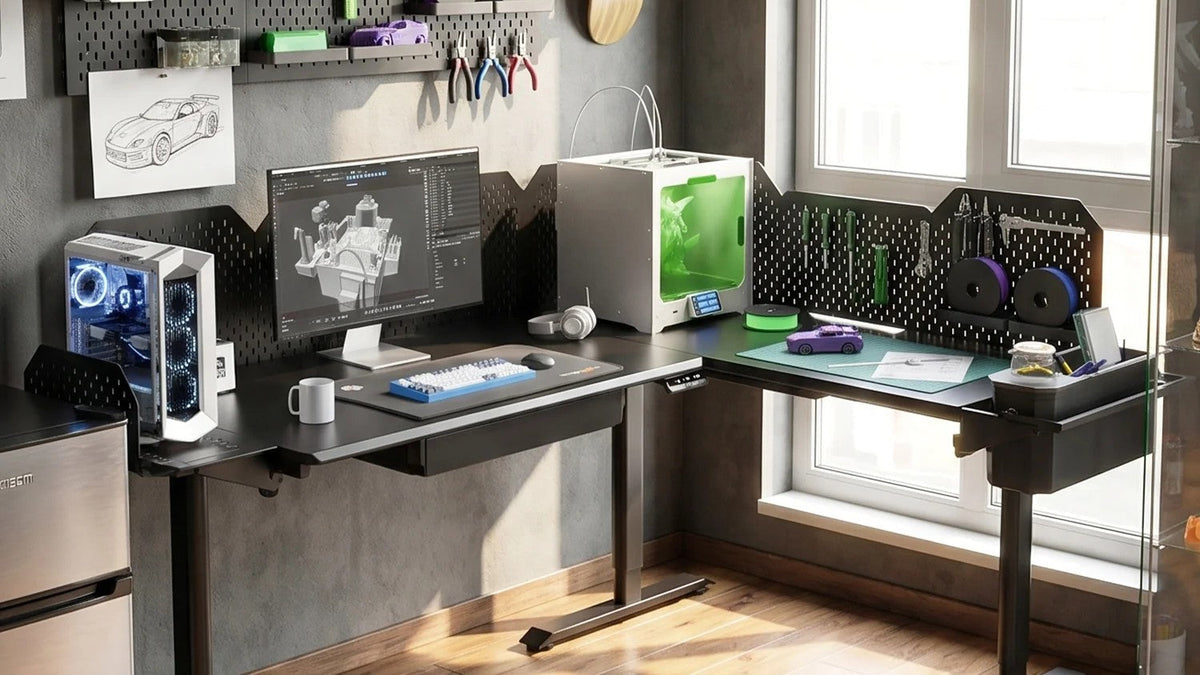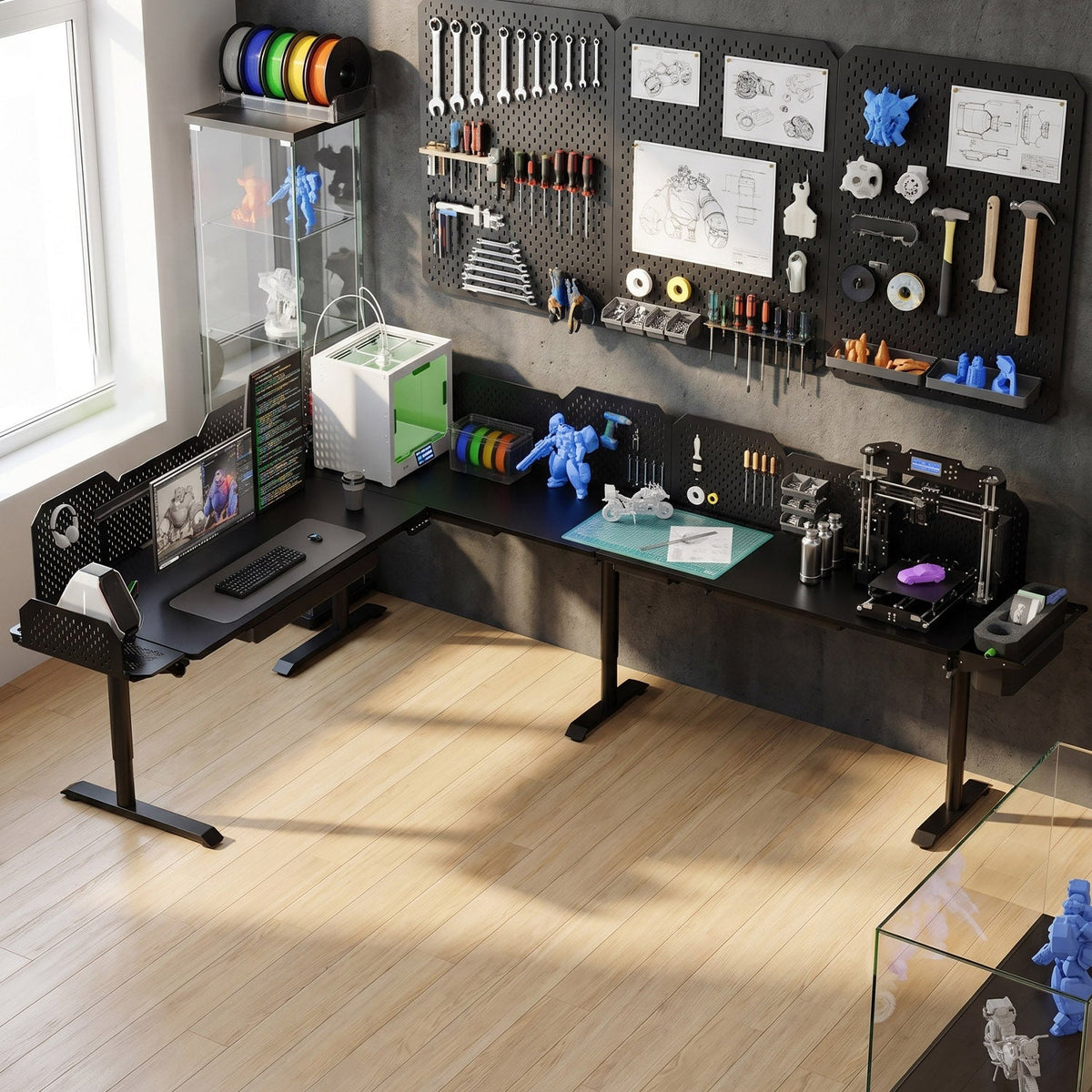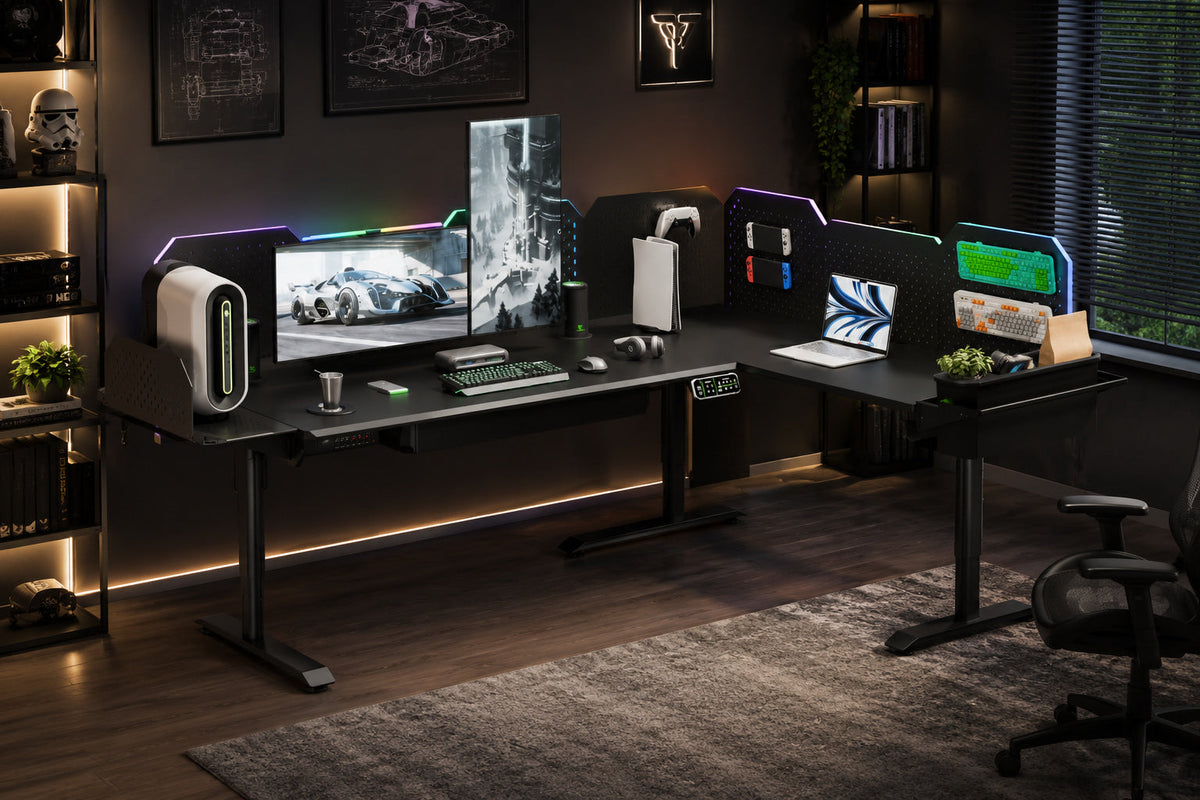
An L-shaped standing desk gives you two surfaces that meet at a corner. Rather than filling both with the same mix of equipment, give each side a purpose: use one as your main workspace for the screen and tools you use every day, and reserve the other for anything that would crowd it. This layout is based on the CreatorOne L-Shape, with an 86.6-inch long leg and a 63.0-inch return, but the same approach works with any L-shaped desk.
Why divide the desk into two zones
- Fewer distractions: Keep your eyes and hands in one area for focused work, while the other handles support tasks.
- Tidier cables: Put chargers, printers, and paper in the secondary zone so the main workspace stays clear.
- Lower cost than two desks: One L-shaped desk can cover the jobs of two separate desks while using one frame and motor system.
Zone A: the main work zone (86.6-inch long leg)
Set the long leg in front of you as your main workspace. This is where the monitor, keyboard, and mouse belong.
- Center a 27- to 34-inch monitor, or mount two monitors on one monitor arm, along the wall side.
- Keep the keyboard and mouse at elbow height. The desk adjusts from 30.3 to 47.2 inches, which suits most seated and standing positions.
- Leave 6 to 8 inches clear at the front of the long leg so your wrists can rest comfortably.

Zone B: the secondary work zone (63.0-inch return)
The return is shallower and works well for items that do not need a full desk surface.
- Creative or analog work: sketching, note-taking, a label maker, or a drawing tablet.
- Peripherals: a charging hub, webcam light, document tray, or small printer
- An incoming-items area that keeps clutter from reaching Zone A.

Five steps for setting up the desk
- Step 1: Clear both wings and choose the corner. Stand where you will sit; the long leg should face your main sightline.
- Step 2: Clamp a monitor arm to the long leg to free the surface below.
- Step 3: Route cables from Zone A down the back edge into a tray or along the frame. Keep Zone B wireless when you can.
- Step 4: Put Zone B items in trays or on a pegboard so they stay off the surface and remain in place when the desk moves.
- Step 5: Save two height presets: one for seated work at Zone A and one for standing. The frame stores four presets, so you can add a Zone B height if you work there standing up.
Cables and accessories
Since the entire surface moves up and down, secure anything that could shift. A monitor arm and pegboard keep equipment in place, while a cable tray hides the cable run. The CreatorOne L-Shape has three motors and supports up to 760 lb static or 380 lb dynamic load, so a well-equipped secondary zone is within its capacity.
- Monitor arm: Clears Zone A and centers the screen.
- Pegboard, metal or expansion: Keeps Zone B tools off the desktop.
- Multi-port charging station: Combines Zone B chargers in one place.
Ergonomics reminder
Keep both zones at the same height when you work across them. With a 30.3- to 47.2-inch range and 35 mm/s travel speed, the desk moves from sitting to standing quickly. Its motors operate at 50 dB or below, which helps during calls. Set the desk to elbow height, then raise the screen with the monitor arm as needed.
FAQ
- Can I run two computers, one in each zone? Yes. Keep the primary computer in Zone A and a laptop in Zone B, and plan for two cable routes.
- Will the desk wobble with weight on both wings? The L-shape has three motors and a 760 lb static rating. Place heavier items near the corner for better stability.
- Is an L-shape better than two desks? For one person who needs a focused work area and nearby support space, it can be. It also costs less than two separate frames. (See our L-shape vs. two-desks comparison.)
Set up your two-zone workspace
The CreatorOne L-Shape has an 86.6-inch long leg, a 63.0-inch return, and enough motor capacity for both zones. Start with the frame, then add a monitor arm and pegboard to keep each zone organized.